
Information you need to run your painting business in PaintClarity. Search below or browse by topic.
Instructional Videos
PaintClarity Walkthrough (full app tour)
A practical five-minute tour of PaintClarity, from the first quote to the finished job. Follow a guest bedroom repaint through customer information, painting-specific quote tools and paint calculators, online quote acceptance, scheduling and crew assignment. Then see the painter’s field view, try paint colors with the Visualizer, and review the completed job’s profit and actual production rate.
Watch the walkthrough on YouTube
Jump to a section
- 0:11 Your active and upcoming jobs
- 0:31 Customer information
- 0:52 Painting quotes and paint calculators
- 1:29 The customer’s online quote
- 1:47 Scheduling, crew assignment and job instructions
- 2:17 Painter field view and offline viewing
- 2:51 Paint Visualizer
- 3:23 Job costs, profit and Job Pulse
- 3:53 Actual Production Rates
- 4:20 Free, Pro and room to grow
The walkthrough uses fictional customers and seeded demo jobs, and the Visualizer’s rendering time has been shortened. Color previews help narrow your choices; confirm the final color with a physical paint sample.
Getting Started
How Do I Use PaintClarity?
PaintClarity is designed to be simple, intuitive, and productive from day one. This quick guide will walk you through the basics so you can get up and running in just a few minutes.
When you’re done, be sure to read How to Get the Most Out of PaintClarity for practical tips and best practices to help you and your team get the most value from the platform.
Prefer to watch? The five-minute PaintClarity Walkthrough under Instructional Videos follows one job from quote to completion.
How to Get the Most Out of PaintClarity?
Read this guide to learn practical tips, best practices, and proven workflows that will help you and your team get the most value from PaintClarity.
What is PaintClarity?
PaintClarity is a WordPress plugin that turns your own website into the back office for a painting business. You can build professional quotes, schedule crews on a calendar, track jobs from lead to completed, keep customer records with before and after photos, log expenses, and (on Pro) see the real profit on every job. It was built by a painter, for painters, and your data lives in your own WordPress database rather than a third-party cloud.
What do I need to run it?
A self-hosted WordPress site (WordPress 6.0 or newer) running PHP 7.4 or newer. That is it for the core app. A few optional features connect to outside services only if you turn them on: online card deposits use your own Stripe account, the AI tools use your own OpenAI key, and address autocomplete uses a Google Maps key. We also strongly recommend running your site over HTTPS, which the mobile app and online payments require.
How do I install and activate PaintClarity?
Install it like any WordPress plugin: from your dashboard go to Plugins, Add New, search for PaintClarity, then Install and Activate. On activation PaintClarity automatically creates the one page your whole app runs on. If you ever need to recreate that page, you can do it from PaintClarity, Settings under Setup Health, App Page.
Where is the app after I install it?
PaintClarity runs from a single WordPress page that holds the shortcode [paintops_app]. It is created for you on activation. Everything (quotes, calendar, jobs, customers, photos, financials) lives on that one page and routes internally, which keeps your admin menu tidy. You will find the link to it under PaintClarity in your WordPress admin.
How do I set up my company profile?
Go to PaintClarity, Business in your WordPress admin and open Company Profile. Set your business name, address, phone, email, website, logo, country, currency, and units. This information fills the header of your quotes and invoices, the quote email signature, and your pricing suggestions, so it is worth completing before you send your first quote.
What is included free, and what is Pro?
Free runs the job from first call to final payment:
- Quotes and estimates with a scope-aware builder, inclusions and exclusions, itemized or lump-sum pricing, printable PDF and email
- Send a quote by link. The customer opens it on their phone, sees the full itemized version, and accepts by typing their name as a signature, or declines with a reason. Taking a card deposit is the Pro part
- Scheduling calendar, crew assignment, and a calendar subscription for Google, Apple or Outlook
- Job board and pipeline, customer records, before and after photos, job notes with camera
- Crew tools: time clock check-in and check-out, time off, worker notifications, and permissions that keep money out of painters’ hands
- Job cost tracking: log expenses, hours and payments against a job
- Receipt logging, paint colors per job, follow-ups, and a communication log of everything you sent
- Trade calculators and a price list
- Color visualizer, business notes, crew resources and Business Checkup
- Offline access in the field
- Data export and erase tools, and your customer quote and invoice pages are kept out of search engines
- Unlimited jobs, quotes, painters and admin users. No monthly limit
Pro is $45 per month per site and adds the money side:
- Profit and margin reporting per job, per crew, per worker and by job classification
- The Profits dashboard and Job Pulse
- Invoicing: create, number and send invoices
- Online card deposits and invoice payments through Stripe
- AI tools: estimate from a photo, scan a receipt, and get feedback or a rewrite on your quote wording, using your own OpenAI key
- Vehicle mileage and expense log
- Overhead and business expenses, with a year summary
- Vendor spend and 1099 reporting, and duplicate receipt detection
- Year-end reports for your accountant
- Priority support
The short version: free tracks the work and the money going in and out. Pro tells you what it all meant.
Quotes
How do I build a quote?
Start a new request, enter the customer and the job, then open the quote builder. It understands painting work: you pick interior or exterior scope components, add standard inclusions and exclusions, and choose itemized line items or a single lump sum. Built-in trade calculators can figure quantities and drop the numbers straight into the quote. When it looks right, you can print it, save it as a PDF, or email it to the customer.
What are inclusions and exclusions, and why do they matter?
Inclusions spell out exactly what the price covers, and exclusions state what it does not, which is what keeps you out of disputes later. PaintClarity ships with a reusable library of painting-specific scope and exclusion language you can drop onto any quote and edit, so every quote reads clearly and consistently. You manage the library under PaintClarity, Business, Exclusions Library and the per-category scope components.
Itemized or lump-sum pricing, which should I use?
Both are supported on every quote. Itemized shows the customer a breakdown of line items, which builds trust on larger jobs. Lump sum shows a single total, which is cleaner for smaller work. You choose per quote, so you can match the format to the customer.
How do I send a quote to a customer?
From the quote you can email it directly to the customer with a clean PDF, or print or save the PDF and send it yourself. The email uses your company profile for the signature. If your quote emails are landing in spam, see the email deliverability article, connecting an SMTP service fixes it.
How does a customer accept a quote?
Every quote can be shared as a private link that opens a customer-facing page with no login required. The customer reviews the quote and accepts it right there, and on Pro they can pay a deposit online by card at the same time. On the free plan you record the accepted quote and any in-person deposit yourself. Customers can also simply reply to the quote email to accept.
How do I revise a quote?
Open the job and create a new quote revision. PaintClarity keeps every revision, and the job always points at the latest one, so you have a full history of what changed without cluttering the customer’s view. Revising does not count against your monthly free limit.
What is the difference between a quote, an estimate, and a bid?
They are the same underlying record, just labeled to match how you talk to a customer. You can present a document as a Quote, an Estimate, or a Bid, and turn a quote into an active job when it is accepted, all without creating a separate record. Because they are one record, each counts as a single item against the free monthly limit.
Scheduling & Jobs
How do I schedule a job and assign a crew?
Put the job on the calendar with a start date, how many days it needs, and a start time, then assign the painters and helpers who will work it. Assigned crew members can open the job from their own login (and from the notification email) to see the address, scope, colors, and notes.
What is the job board or pipeline?
The board gives you a simple three-column view of your work: Quotes, Active Jobs, and Completed. It is the fastest way to see where everything stands and move a job from quote to active to done. On Pro, active and completed cards also show a balance-due or paid-in-full tag.
Can I subscribe to the schedule from my phone calendar?
Yes. PaintClarity publishes a private calendar feed you can subscribe to from Google Calendar, Apple Calendar, or Outlook, so your PaintClarity jobs show up alongside the rest of your day. Keep the feed link private, since anyone with the exact link can view the schedule.
Can I add my own holidays to the calendar?
Yes. Under PaintClarity, Settings, Calendar Holidays you can add the days you close for, including fixed dates and floating rules like “the fourth Thursday of November,” and there are one-click US presets to get you started.
How do I schedule a callback or punch-list visit?
From a job you can schedule a follow-up visit, such as a callback or punch-list trip, tied back to the original job. It shows on the calendar like any other visit. Note that a follow-up is its own record, so on the free plan it counts toward your monthly new-item limit.
Customers
How do customers request a quote from my website?
Add the quote request form to any page with the shortcode [paintops_quote_form]. A contact page is the usual home for it. Someone who fills it in becomes a lead inside PaintClarity instead of an email you have to remember to answer.
The form always asks for a name and what they need done. Email, phone, property address, type of work and how they prefer to be reached can each be required, optional, or left off under PaintClarity, Settings, Quote Request Form. You can add up to six questions of your own there, and choose whether to be emailed as each request arrives or once a day.
New requests appear at the top of your Jobs page and on the Leads screen.
Open one and use “Convert to Request”. If the person already looks like a customer you have, PaintClarity puts the two records side by side and asks whether it is the same person before it links them. Nothing is saved until you create the request, so you can back out at any point.
Junk is flagged and kept in your Spam list, never thrown away, so a real customer is never lost to a bad guess.
Quote requests are part of PaintClarity Pro.
Where are my customer records?
The Customers area is a directory of everyone you have worked with: contact details, service address, and full job and quote history. On Pro you also see each customer’s lifetime value. Customers are stored as plain records in your database, never as WordPress user accounts, so no one gets a login they did not ask for.
How do I delete a customer?
Open the customer and use the “Delete this customer” panel at the bottom (administrators only). This is a full, permanent wipe: it removes the customer and every job and quote linked to them, along with all attached estimates, financials, expenses, hours, payments, photos, receipts and invoices. It cannot be undone, so take a database backup first if the customer has real history.
Use this for a test entry, a duplicate, or a record you are certain you will never need again.
If a customer has asked you to remove their personal information, use Tools, then Erase Personal Data instead. That clears their details without destroying the financial records you are required to keep. See “How do I remove a customer’s data on request?”
Crew & Team
Production rates: what yours actually is, and how to use it
Your production rate is how much area one painter covers in one work day. The Rates page works yours out from jobs you have already finished, using two things PaintClarity already has: the hours your crew logged, and the Paintable Area on the job.
It divides the hours by your Standard work day to get painter-days, then divides the area by that. A 2,400 sq ft job with 60 hours logged, on an 8 hour day, is 7.5 painter-days, so 320 sq ft per painter per day. The headline figure is the middle value across your last 10 completed jobs, not the average, so one mistyped number cannot drag it.
The page measures. It does not change anything. The rate your quotes are built from is the one you set under PaintClarity, Business, Pricing Rules, or per job category under Job Categories. The Labor Days and Crew Cost Calculator starts from that figure and tells you which one it used. Seeing your measured rate next to the rate you quote from is the whole point: when they disagree, you decide what to do about it, because you know why a month ran the way it did and the arithmetic does not.
You will find it under Tools in the menu, as Rates. It is in the free plan.
How do I add a painter or helper?
A team member just needs a WordPress account, then you enable them under PaintClarity, Painters/Helpers. You can create the account yourself under Users, Add New (WordPress emails them a set-password link), or let them self-register if you have registration turned on. Once added, they get the Painter/Helper role and only see what you allow.
What can painters and helpers see and do?
Every painter or helper can view their own assigned jobs and open the emailed job link. Beyond that, each person has opt-in permissions you control:
- Upload photos (on by default)
- Upload receipts and log expenses (on by default)
- Create jobs (off by default)
- Create quotes (off by default)
- View financials (off by default)
You set these per person on the Painters/Helpers page.
Do my painters see my profit and pay numbers?
No. Money figures (costs, profit, margin, and pay rates) are owner-level and hidden from painters and helpers unless you explicitly grant a specific person the “View financials” permission. A crew member logging hours or a receipt never sees the job’s profitability.
How does the Time Clock (check-in and check-out) work?
On a job, staff and assigned crew can tap Check In when they arrive and Check Out when they leave, and their hours are logged to that job automatically. It even works with no signal and syncs when they reconnect. Hours flow into the job so labor is tracked without anyone typing timesheets.
Can I turn the Time Clock off?
Yes. If you track hours another way, go to PaintClarity, Business, Time Clock and switch it off. The check-in and check-out box then disappears from every job. Any hours already logged are kept, and staff can still enter or correct hours by hand in Manage Financials.
How do worker notifications work?
When enabled, PaintClarity emails each assigned painter or helper a “job starts tomorrow” reminder the day before, with the address, customer, and time. It runs automatically once a day. You turn it on under PaintClarity, Business (or Settings), and there is a backup trigger URL for very low-traffic sites where the daily task can be unreliable.
How long do team members stay logged in?
WordPress normally signs people out after a couple of days, which is a nuisance for a crew checking job details on a phone. Under PaintClarity, Settings, Team Login Duration you can extend how long staff and crew stay logged in. Longer is more convenient but means a lost phone stays signed in longer, so if a device goes missing, change that person’s password to log them out everywhere.
Photos
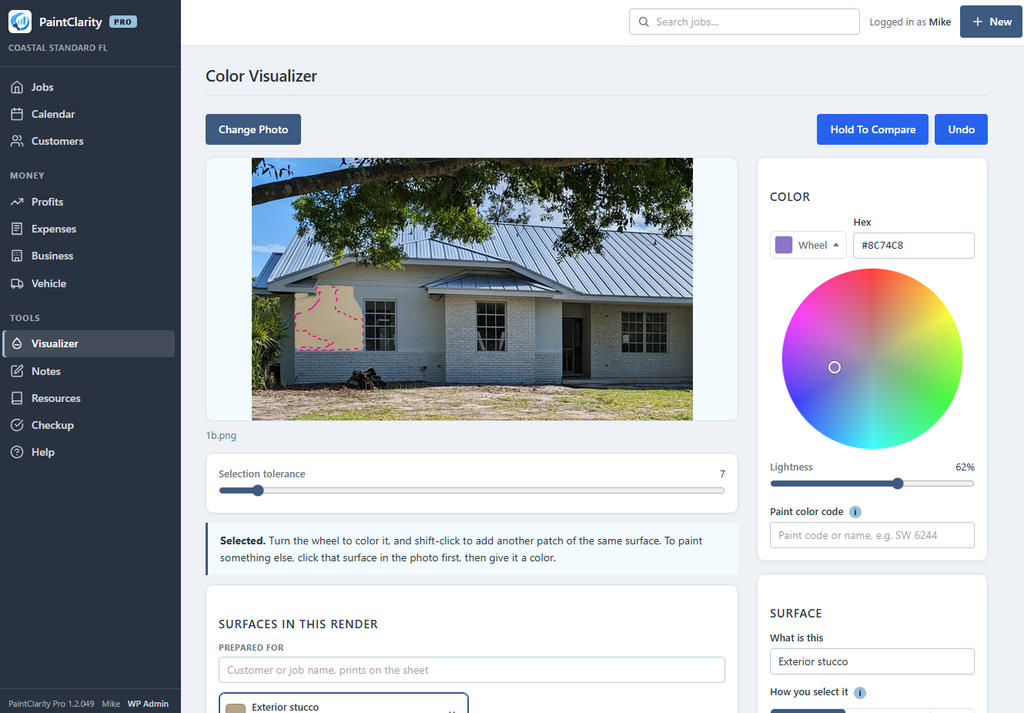
What does the Visualizer do?
Available on free and pro plans. Add a picture, such as the front of the house or an interior space to select and choose colors to present to the client. This is a screenshot of a house. Select a color, and then the areas, such as stucco to colorize that area.
How do I add photos to a job?
Open a job’s Notes & Photos area and take a photo right from your phone camera or choose one from your library. Photos upload as soon as you pick or take them, no separate upload button. Each photo is stamped with the time and who added it, and images are compressed automatically so they do not bloat your site.
How do before and after photos work?
Add a “Before” photo, then tap “Take Matching After Photo.” A live camera overlay shows the Before shot as a faint ghost so you can line up the exact same angle, then it captures and pairs the two automatically. Afterward you get a drag slider to reveal one photo over the other, which is great for showing customers the transformation. You can also pair two photos you already have.
Expenses & Money
How do I log an expense and a receipt? Free
From a job, use Add Expense to record the vendor, category, amount, and date, and attach a photo of the receipt straight from your phone. Expense and receipt logging is included free, so you can track what a job cost even without Pro. Administrators see the amounts in the expense list; plain crew members see only which receipt goes where, never the dollar figures.
How do I see the profit on a job? Pro
On Pro, the Job Financials area turns your logged costs, materials, and labor hours into gross, expenses, profit, and margin for that job. It reads the same expenses you can log for free, and adds the money math on top. This is where you find out which jobs actually made money.
What reporting does Pro add? Pro
Pro includes a set of money reports:
- A Profits dashboard with profit and margin across your jobs
- Profit by classification and category
- Profit-per-hour rankings, so you see which work and which crews pay best
- Outstanding balances and a business financial report
- Business overhead expense tracking, a vehicle and mileage log, and accountant-ready tax reports with receipts
Can I send invoices? Pro
Yes, on Pro. You can create a numbered invoice for a job’s remaining balance, email it to the customer, and give them a link to view and pay it online. Invoices carry your company branding and pull the balance straight from the job.
Payments
How do I collect a deposit?
On the free plan you collect deposits in person and record them on the job. On Pro you can also let a customer pay a deposit online by card when they accept a quote, through your own Stripe account. Either way, the payment is logged against the job.
How do I set up online card deposits with Stripe? Pro
Under PaintClarity, Settings, Stripe Payments, add your own Stripe keys. Money is processed through your Stripe account and lands in your bank, PaintClarity just creates the checkout and records the payment. Online payments require your site to be on HTTPS, which Stripe enforces for live charges.
AI Tools
What can the AI tools do? Pro
On Pro, with your own OpenAI key, PaintClarity can:
- Estimate room dimensions and draft a description of work from a photo
- Scan a receipt photo to auto-fill the vendor, amount, and date
- Give you feedback on, or a professional rewrite of, your quote wording
AI output is a starting point to review, not a guarantee, so check it before it goes to a customer.
How do I set up the AI features, and what do they cost? Pro
The AI tools use your own OpenAI account, so you connect an OpenAI API key under PaintClarity, Settings, AI Settings. You pay OpenAI directly, typically a fraction of a cent to a few cents per action, and PaintClarity adds monthly usage caps you control so costs stay predictable. Nothing is sent to OpenAI unless you click one of the AI buttons.
Mobile & Offline
Can I install PaintClarity on my phone?
Yes. PaintClarity is an installable app: open it in your phone browser and use “Add to Home Screen” to get an app icon that opens full screen, no app store needed. This requires your site to be on HTTPS.
Does it work without a signal?
Yes, within limits. Once installed, the app lets crews keep reading jobs they have opened (address, scope, colors, notes) with no signal, and today’s scheduled jobs are pre-loaded for offline use. Check-in and check-out also work offline: the punch is queued on the phone and synced when the connection comes back, logging the time it was actually tapped. Creating quotes and other changes need a connection.
Why does PaintClarity need HTTPS?
Browsers only allow the offline app, the home-screen install, and live card payments on a secure (HTTPS) site, and HTTPS also encrypts customer and login details in transit. Most hosts offer free SSL with a one-click toggle, or a plugin like Really Simple SSL can handle it. PaintClarity still runs over plain HTTP, but those specific features will not work until you switch to HTTPS.
Settings & Admin
How Can I Migrate My PaintClarity Data?
If you’re moving your PaintClarity website to a new hosting provider, changing your domain name, or moving to a new WordPress installation, this guide walks you through the recommended process.
What is Setup Health?
Setup Health is a status board at the top of PaintClarity, Settings that shows, at a glance, whether each core piece of your install is set up: your app page, timezone, HTTPS, the offline app, your Google Maps key, notifications, and email. Anything that needs attention is flagged, and you can fix each item right there.
My dates and times are wrong. How do I fix that?
PaintClarity shows every date and time in your site’s timezone. If times look off by a few hours, the cause is almost always the WordPress timezone setting. Go to Settings, General, Timezone and pick your city (for example New York or Los Angeles) rather than a fixed UTC offset, then Save. Setup Health, Date & Time also shows the current time and warns if you are on a fixed offset that will not adjust for daylight saving.
Do I need a Google Maps key?
Only if you want address autocomplete, an embedded map on the job, and address geocoding. Add a key under PaintClarity, Settings, Google Maps. Without a key you simply type addresses by hand, and the “Get Directions” links still work, so the key is optional. Get / manage a key and restrict it to your site’s domain.
My quote emails are going to spam. What should I do?
By default WordPress sends mail through your web host with a basic method that many inboxes now flag as spam. The fix is to install a free SMTP plugin (such as WP Mail SMTP or Post SMTP) and connect it to your email provider so messages are authenticated. PaintClarity, Settings, Email Deliverability tells you whether SMTP is detected and includes a “Send Test Email” button.
Can I change how the app looks?
Yes. PaintClarity includes a set of visual themes (light, dark, industrial, and more) that you can switch site-wide under PaintClarity, Settings, Appearance.
How do I back up or export my data?
From PaintClarity, Business, Backup & Data you can download a ZIP export of your PaintClarity records (all tables as CSV plus your settings). For a complete, restorable backup that also includes your photo and receipt image files, use a full WordPress site-backup plugin, since those images live in your WordPress Media Library. Read our post about backing up your WP data to learn more. The export is records only.
Can I show a ‘Powered by PaintClarity’ credit on my quotes? Pro
Your customer quotes and invoices carry no PaintClarity branding. That is true on both the free plan and Pro, and there is nothing to remove.
If you would like to support PaintClarity, you can choose to show a small “Powered by PaintClarity” credit at the bottom of your customer documents. Turn it on under PaintClarity, Business, Quote and Invoice Branding. It is off until you switch it on, and you can switch it back off at any time. Your own logo, name and address are unaffected either way.
Billing
How much is Pro, and what does it unlock?
Pro is $45 per month per site, with unlimited users either way.
It adds profit and margin reporting by job, crew, worker and job classification, the Profits dashboard and Job Pulse, invoicing, online card deposits and invoice payments through Stripe, the AI tools, the vehicle mileage and expense log, overhead expense tracking with a year summary, vendor spend and 1099 reporting, and year-end reports for your accountant.
The free plan is not limited or time-restricted. It keeps working exactly as it does now if you never upgrade.
How do I cancel, and what is the refund policy?
Pro is billed through our provider, Freemius, and you can cancel anytime from your account. Cancelling stops future renewals, and Pro features stay active through the end of the period you already paid for. For the current refund terms, see the details shown at checkout.
Privacy & Data
What privacy settings does PaintClarity have?
Three things are handled for you and need no setting.
Your customer quote and invoice pages are blocked from search engines, so a link that gets forwarded or posted somewhere cannot turn into a search result. Tools, then Export Personal Data and Erase Personal Data both search PaintClarity by email address. And suggested wording for your own privacy policy, covering what PaintClarity stores and who else sees it, is waiting under Settings, Privacy, Policy Guide.
Three more are optional and off by default, under PaintClarity, Settings, Privacy and Customer Data. A shop working only in the United States can leave all three off.
- Delete the log of emails you sent after a number of months
- Forget the IP address recorded when a customer signs a quote online, after a number of months. The typed name and date stay, so your acceptance record survives
- Give customer quote and invoice links a shelf life in days. Be careful with this one: it applies to links you have already sent
All of this is in the free and pro plugin.
Where does my business data live?
In your own WordPress database, on your own hosting. PaintClarity does not store your quotes, jobs, customers, photos, or financials on an outside server, and we do not have access to them. You control your data.
What data is sent to third parties?
Only when you enable an optional feature, and only the data that feature needs.
If you use the AI tools, the photo or quote text you are working on is sent to OpenAI. If you take an online deposit or invoice payment, payment details are exchanged with Stripe. If you enable maps, the address you type is sent to Google. If a staff member plays a saved training video on the Resources page, it loads from YouTube or Vimeo. Licensing and updates are handled by Freemius.
Your customer and job records are never sent anywhere. With none of those keys entered, PaintClarity runs entirely on your own site.
How do I remove a customer’s data on request?
Go to Tools, then Erase Personal Data in your WordPress admin, enter the customer’s email address and send the request. WordPress asks PaintClarity for everything it holds on that address and clears it.
What it removes: their name, address, phone number and email from their customer record and from every job, the typed signature and IP address from any quote they accepted online, the reason they gave if they declined one, and the log of emails you sent them. Any quote or invoice link you had already sent them stops working.
What it keeps, on purpose: the quotes, invoices and payments themselves, with their amounts and dates intact and the personal details stripped out. You are required to keep your financial records for several years, and data protection law allows you to keep them for that reason. Answering a deletion request should not cost you your books.
Two things are left for you to judge, and the results screen tells you how many of each. Job photos, because they are your own record of the work and can show the property. And any scope or internal notes on their jobs, because free text can name someone anywhere inside it and no automatic pass can tell.
To see what you hold before you decide anything, run Tools, then Export Personal Data on the same email address first.
If you want a customer and all their history genuinely gone, a test entry or a duplicate for example, that is a different tool. See “How do I delete a customer?”
Troubleshooting
The offline app or install option is not working.
The offline app and “Add to Home Screen” require your site to be served over HTTPS. Check Setup Health, Security to confirm. If you just switched something on and a phone still shows an old version of a page, opening the app while online once lets it refresh its saved copy.
A photo will not upload.
Most upload problems are hosting limits (the maximum upload size or PHP memory) rather than PaintClarity itself. Try a smaller image, and if it persists, ask your host to raise the upload and post size limits. PaintClarity already compresses images before upload to keep them small.